> For the complete documentation index, see [llms.txt](https://commandbox.ortusbooks.com/llms.txt). Markdown versions of documentation pages are available by appending `.md` to page URLs; this page is available as [Markdown](https://commandbox.ortusbooks.com/5.7.0/ide-integrations/visual-studio-code.md).
# Visual Studio Code
Here are suggestions for using **VSC** (*Visual Studio Code*) for developing in **CFML**.
What do you want to do with VSC?
1. Install it?
2. Key Extensions?
3. Working with the shell/terminal
4. Git Extensions?
## Installing VSCode
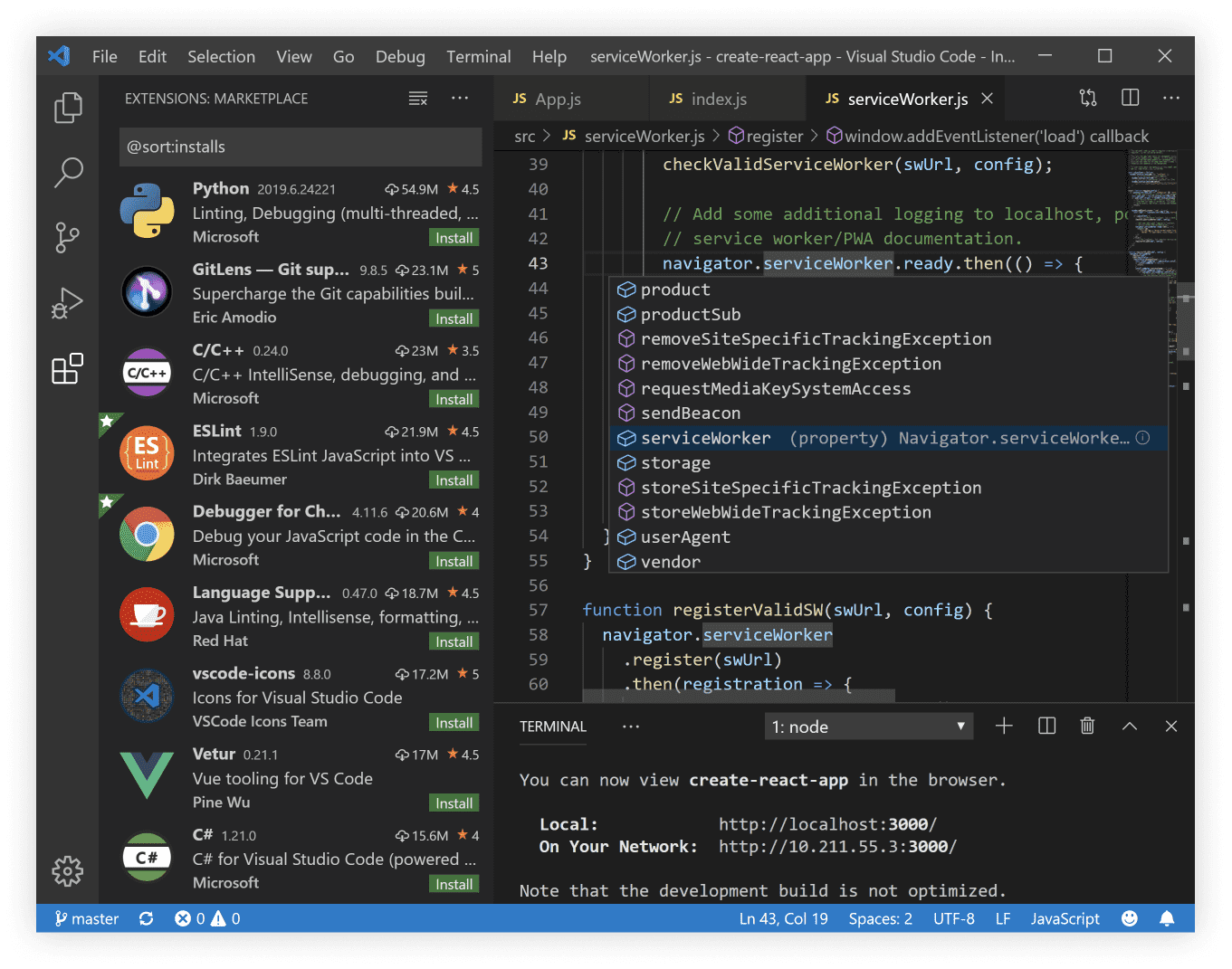
This IDE has it's own domain. ( ) with downloads for **macOS**, **Windows** and **Linux** on the home page. :thumbsup:
## Using The Terminal/Shell
You can approach this different ways. It is pretty nice to have the command prompt running right inside your IDE. Pressing *CTRL +\`* will show and/or hide your terminal. This will let you run *Commandbox* directly inside your terminal.
### Commandbox only
Go to `File > Preferences > Settings` and search for `shell.windows`. Hover over the item in `DEFAULT SETTINGS` and you will see an edit pencil. Click on that and it will copy the values over to `USER SETTINGS`. (NOTE: You can also set stuff up in `WORKSPACE SETTINGS` for different projects. Now set the location of commandbox on your system like we did in our system in the example below.
`"terminal.integrated.shell.windows": "/path/to/box",`
When adding a path, follow the rules for adding platform specific path separators.
### Commandbox and Shells of Choice
Install Shell Launcher and reload the IDE.
* [Shell Launcher](https://marketplace.visualstudio.com/items?itemName=Tyriar.shell-launcher) *Easily launch multiple shell configurations in the terminal.*
Now open your user settings like is shown in the Commandbox only section just above. Add the following to your `USER SETTINGS`.
`//Shell launcher`\
`// A list of shell configurations for Windows`\
`"shellLauncher.shells.windows": [`\
`{`\
`"shell": "C:\\Windows\\sysnative\\cmd.exe",`\
`"label": "cmd"`\
`},`\
`{`\
`"shell": "/path/to/box",`\
`"label": "Commandbox"`\
`}`\
`],`
### Or loading it as desired
If you have commandbox mapped to a path you can of course just call box like you would from any terminal and it will load right up for you. Just use any terminal in VSC that would load `box` outside VSC and it will run the same.
## Key Extensions
You should also install a few extensions. (These extensions can also be added from the built in Extensions item.)
* [CFML Language Support](https://marketplace.visualstudio.com/items?itemName=KamasamaK.vscode-cfml)
* [CFLint Support](https://marketplace.visualstudio.com/items?itemName=KamasamaK.vscode-cflint)
* [Tag Comment Support](https://marketplace.visualstudio.com/items?itemName=trst.cfml-comment-tags)
## Git Extensions
Additional Extensions ( of course, choose the ones you want and ignore the others )
* [Git Lens](https://marketplace.visualstudio.com/items?itemName=eamodio.gitlens) *This will take your git IDE to new levels.*
## P.S. A couple of other nice plugins.
* [TODO Highlight](https://marketplace.visualstudio.com/items?itemName=wayou.vscode-todo-highlight) *Add TODO, FIXME or other comments to code and find quickly with this extension.*
* [Project Manager](https://marketplace.visualstudio.com/items?itemName=alefragnani.project-manager): save folders as projects and easily switch between projects
* [Hg](https://marketplace.visualstudio.com/items?itemName=mrcrowl.hg): integrated Mercurial source control
* [Great Icons](https://marketplace.visualstudio.com/items?itemName=emmanuelbeziat.vscode-great-icons) *Because it is more fun, nuff said!*
More information to follow. (Including video guides to show how to get started that may not be as familiar with different parts.)
---
# Agent Instructions
This documentation is published with GitBook. GitBook is the documentation platform designed so that both humans and AI agents can read, navigate, and reason over technical content effectively. Learn more at gitbook.com.
## Querying This Documentation
If you need additional information that is not directly available in this page, you can query the documentation dynamically by asking a question.
Perform an HTTP GET request on the current page URL with the `ask` query parameter, and the optional `goal` query parameter:
```
GET https://commandbox.ortusbooks.com/5.7.0/ide-integrations/visual-studio-code.md?ask=&goal=
```
`ask` is the immediate question: it should be specific, self-contained, and written in natural language.
`goal` is optional and describes the broader end goal you are ultimately trying to accomplish on behalf of the user. GitBook uses it to tailor the answer towards what is most useful for that goal.
The response will contain a direct answer to the question and relevant excerpts and sources from the documentation.
Use this mechanism when the answer is not explicitly present in the current page, you need clarification or additional context, or you want to retrieve related documentation sections.