
Loading...
Loading...
Loading...
Loading...
Loading...
Loading...
Loading...
Loading...
Loading...
Loading...
Loading...
Loading...
Loading...
Loading...
Loading...
Loading...
Loading...
Loading...
Loading...
Loading...
Loading...
Loading...
Loading...
Loading...
Loading...
Loading...
Loading...
Loading...
Since CommandBox is a command line tool, it requires no GUI. If you are using an OS with a GUI (like Windows) and you run the box executable, the CommandBox interactive shell will open in a new window. CommandBox looks and behaves like a Bash or DOS window, but the command prompt is not your native OS-- it's CommandBox running INSIDE your native shell and interpreting what you type.
As such, operating system commands won't execute (unless we've implemented a similar one in CommandBox). However, we also have a command called run () which can be used to run native commands from within CommandBox. Command input parameters and flags won't necessarily match your OS's native shell. CommandBox uses its own parser and commands/parameters will be formatted as documented here.
Selecting and copy/paste may differ based on your operating system and how it treats command windows. CommandBox uses some color and formatting in its output. This uses escape codes and will only work correctly if you're using an ANSI-compatible shell to run CommandBox from.
If you have launched the CommandBox executable from your OS's GUI, it will run inside of a native shell window. When finished running commands, you can simply close the window, or type exit an the window will close for you. If you have a series of commands to run, this is the recommended approach.
If you manually open your native shell and execute the box executable, it will take over the screen and the prompt will now become a CommandBox prompt. When you type exit the CommandBox program will drop you back at your native OS shell.
You can also leverage CommandBox as another operating system binary if you want to execute one-off commands without having the need to go into the interactive shell. This is useful if you are integrating CommandBox with other system binaries, task runners, ANT, or you just want to execute a CFML template or CommandBox recipe.
Info Executing one-off commands might have a delay when executing as the CommandBox environment needs to load first.
So let's go a little deeper into
On Windows, / or \ will be treated as the current drive root based on the current working directory. This is the same as DOS.
On all OS's, ~ will expand to the current user's home directory.
$ box version
$ box install coldbox-be
$ box upgradecd /windows/system32cd ~
ls ~/.sshThere are two ways to run commands via CommandBox: inside the CommandBox interactive shell, or one-at-a-time commands from your native shell.
If you open the interactive shell, you will see the CommandBox splash screen (ASCII art) and then you'll be presented with the CommandBox> prompt. You can enter as many commands as you wish in order and after each command is finished executing, you will be returned to the CommandBox prompt. If you have multiple commands you want to execute manually, this is the fastest method since CommandBox only loads once. This is also the only way to make use of features like tab complete and command history.
This example show running the box.exe executable from a Windows DOS prompt, executing the , , and commands, and then exiting back to DOS.
You can also spin up CommandBox from your native shell to execute a single command inline. You can do this if you only have one command to run, or you want to automate a command from a Unix shell script or Windows batch file. This mode will not show the ASCII splash screen, but keep in mind it still loads CommandBox up and unloads it in the background. Any output from the command will be left on your screen, and you will be returned to your native OS prompt.
Here is an example of running the version command from a Windows DOS screen. Note, you'll need to either do this from the directory that holds the box executable, or add the executable to your default command path so it is found.
The box text is calling the CommandBox binary, and the version bit is passed along to the CommandBox shell to execute once it loads.
You can also activate CommandBox in debug mode by passing the -debug flag in the command line. This will give you much more verbose information about the running CommandBox environment. This affects both the interactive shell or one-off commands
Output from commands will be ANSI-formatted text which, by default, streams directly to the console. When in the interactive shell, you can capture the output of commands and manipulate it, search it, or write it to a file. Use a pipe (|) to pass the output of one command into another command as its first input. Output can be piped between more than one command. Use a right bracket (>) and double right bracket (>>) to redirect output to the file system.
Pipe output into the command to apply a regex upon it. will only emit lines matching the regex.
Pipe output into the command to output it line-by-line or page-by-page. Press the spacebar to advance one line at a time. Press the Enter key to advance one page at a time. Press ESC or “q” to abort output.
Redirect output into a file, overwriting if it exits like so:
Use the double arrows to append to an existing file.
You can pipe a large amount of text or a file name into the tail command to only output the few lines of the text/file. Adding the --follow flag when tailing a file will live-stream changes to the file to your console until you press Ctrl-C to stop.
If you want to add ad-hoc Java Properties to the actual CLI process, you can set an environment variable in your OS called BOX_JAVA_PROPS in this format:
That would create a property called foo and a property called brad with the values bar and wood respectively.
If you are using CommandBox in a continuous integration server such as Jenkins or Travis-CI, you may find that features like the progress bar which redraw the screen many times create hundreds of lines of output in the console log for your builds. You can enable a non interactive mode that will bypass the output from interactive jobs and the download progress bar.
If there is no nonInteractiveShell setting, CommandBox will automatically default it to true if there is an environment variable named CI present, which is standard for many build servers such as Travis-CI.
When a command has an argument with a type of Globber for a file path, that means you can use file globbing patterns to affect more than one file at a time. Globbing patterns are common in Bash as well as places like your .gitignore file. They use common wildcard patterns to provide a partial path that can match zero or hundreds of files all at the same time.
If a globbing pattern contains a question mark, that will match any single character. So a pattern of ca?.txt would match car.txt
cat.txtcart.txtp?p?.cf?papa.cfmpipe.cfcIf a globbing pattern contains a single asterisks, that will match zero or more characters inside a filename or folder name. So d*o matches doodoo, dao, and just do. The wildcard only counts inside a file or folder name, so models/*.cfc will only match cfc files in the root of the models folder.
To extend the previous example, if we did models/**.cfc that would match any cfc file in any subdirectory, no matter how deep.
Here's some examples of what file globbing might look like:
Here's some more examples of how the wildcards work
C:\>box.exe

   _____                                          _ ____
  / ____|                                        | |  _ \
 | |     ___  _ __ ___  _ __ ___   __ _ _ __   __| | |_) | _____  __
 | |    / _ \| '_ ` _ \| '_ ` _ \ / _` | '_ \ / _` |  _ < / _ \ \/ /
 | |___| (_) | | | | | | | | | | | (_| | | | | (_| | |_) | (_) >  <
  \_____\___/|_| |_| |_|_| |_| |_|\__,_|_| |_|\__,_|____/ \___/_/\_\  v1.2.3.00000

Welcome to CommandBox!
Type "help" for help, or "help [command]" to be more specific.
CommandBox> version
CommandBox 1.2.3.00000
CommandBox> pwd
C:\
CommandBox> echo "Hello World!"
Hello World!
CommandBox> exit

C:\>C:\>box version
CommandBox 1.2.3.00000
C:\>box version -debug
box server start -debugcat myLogFile.txt | grep "variable .* undefined"forgebox show | moredir > fileList.txtecho "Step 3 complete" >> log.txtforgebox search luis | tail
system-log | tail lines=50
tail myLogFile.txt --followBOX_JAVA_PROPS="foo=bar;brad=wood"config set nonInteractiveShell=trueCommandBox> rm temp*.txt
CommandBox> cp *.cfm backup/
CommandBox> touch build/*.properties// Match any file or folder starting with "foo"
foo*
// Match any file or folder starting with "foo" and ending with .txt
foo*.txt
// Match any file or folder ending with "foo"
*foo
// Match a/b/z but not a/b/c/z
a/*/z
// Match a/z and a/b/z and a/b/c/z
a/**/z
// Matches hat but not ham or h/t
/h?tIf you want to execute a native binary from inside the interactive shell or as part of a CommandBox recipe, we allow this via the run command. You can read the API docs for run here.
Hint This behavior is dependent on your operating system.
run binaryExecute an operation system level command using the native shell. For Windows users, cmd.exe is used. For Unix, /bin/bash is used. Command will wait for the OS command to finish.
The binary must be in the PATH, or you can specify the full path to it. Your keyboard will pass through to the standard input stream of the process if it blocks for input and the standard output and error streams of the process will be bound to your terminal so you see output as soon as it is flushed by the process.
!binaryA shortcut for running OS binaries is to prefix the binary with !. In this mode, any other params need to be positional. There is no CommandBox parsing applied to the command's arguments. They are passed straight to the native shell. As such, you don't need to escape any of the parameters for CommandBox when using this syntax.
OS Commands you run are executed in the same working directory as CommandBox. This means you can seamlessly invoke other CLIs without ever leaving the interactive shell.
The output of native calls can be used in or piped into other commands. Here's a Unix example that uses from the command line to parse the parent folder from the current working directory:
When passing a command string for native execution, any piping, redirection, && or || will be processed on the CommandBox side. In the above example, the native !pwd output is passed back to a CommandBox command.
Additionally, any or will not be processed by CommandBox, but will be passed to the native OS directly.
In the event you want to have the piping done by the operating system OR you want expansions to be processed by CommandBox prior to passing to the OS, you can workaround this by echoing out what you want to run and then piping that to the run command.
In the above example, written for Windows, the output of the echo command has the package show name expression expanded into the string and then the ENTIRE string is piped to run where the pipe and the find command are processed by Windows. Note, there is no need for preceding the command with ! when passing to run since ! is just an alias for run.
You can override the default native shell from /bin/bash to any shell of your choosing, like zsh. This will let you use shell specific aliases. You can set your native shell property using the config set command (i.e., config set nativeShell=/bin/zsh)
If the native binary errors, the exit code returned will become the exit code of the run command itself and will be available via the usual mechanisms such as ${exitCode}.
You can already execute CFML functions in the REPL command to play in a sandbox, but sometimes you want to go further and actually use CFML directly in the CLI. This is where the cfml command comes in handy. The following runs the now() function. It is the equivalent to repl now().
As a handy shortcut, you can invoke the cfml command by simply typing the name of the CFML function, preceded by a # sign.
When you pass parameters into this command, they will be passed directly along to the CFML function. The following commands are the equivalent of hash( 'mypass' ) and reverse( 'abc' ).
This really gets useful when you start piping input into CFML functions. Like other CFML commands, piped input will get passed as the first parameter to the function. This allows you to chain CFML functions from the command line like so. (Outputs "OOF")
By piping commands together, you can use CFML functions to transform output and input on the fly to generate very powerful one-liners that draw on the many CFML functions already out there that operate on simple values.
Since this command defers to the REPL for execution, complex return values such as arrays or structs will be serialized as JSON on output. As a convenience, if the first input to an array or struct function looks like JSON, it will be passed directly as a literal instead of a string.
The first example averages an array. The second outputs an array of dependency names in your app by manipulating the JSON object that comes back from the package list command.
The sky is the limit with the mashups you can create. This example runs your native java binary, uses CFML functions to strip out the first line, and then grabs a portion of that string via regex in the sed command.
You must use positional parameters if you are piping data to a CFML function, but you do have the option to use named parameters otherwise. Those names will be passed along directly to the CFML function, so use the CF docs to make sure you're using the correct parameter name.
One common question is how to access the database from one of these scripts. Your code is executed on Lucee Server (version 4.5 at the time of this writing) which is the version of Lucee that the core CLI runs on. The CLI has the full power of a Lucee server running under the covers, but there's no web-based administrator for you to acess to do things like adding datasources for your scripts to use. It would considered poor form anyway since standalone scripts are best if they're self-contained and don't have external dependencies like server settings necessary to run.
So the easiest way to accomplish this is simply to exploit a little known but very cool feature of Lucee that allows the datasource attribute of most tags to be not only a string which contains the name of the datasource, but also a struct that contains the _definitiion_ of the datasource. This will create an on-the-fly connection to your database without any server config being necessary which is perfect for a stand-alone script. Here is what that looks like. Note, I'm using queryExecute(), but it would work just as well in a cfquery tag.
Many Commands accept a path to a folder or file on your hard drive. You can specify a fully qualified path that starts at your drive root, or a relative path that starts in your current working directory. To find your current working directory, use the pwd command (Print Working Directory). To change your current working directory, use the cd command.
Here are examples of fully qualified paths in Windows and *nix-based:
Many commands accept parameters to control how they function. Parameters are entered on the same line as the command and separated by a space and can be provided as named OR positional, similar to how CFML functions can be called. You cannot mix named and positional parameters in the same command though or an error will be thrown. There is also a concept of "flag" for boolean parameters that can be combined with named or positional parameters for brevity and readability.
Named parameters can be specified in any order and follow the format name=value. Multiple named parameters are separated by a space.
CommandBox has support for 256 colors in the console, but this is limited by the terminal in use. For instance, SSHing into a Linux server with PutTTY only supports 8 colors. Windows cmd only supports 16 colors. Most Mac terminals seem to support 256 colors by default.
For Windows users, we recommend using an add-on terminal like ConEMU which has good 256 color support out of the box. To find out how many colors your terminal supports, you can run this command:
This will show you at the top how many colors are supported. It will also output a sample of each of the 256 colors. Terminals that support less than 256 colors will "round" down and show the next closest color automatically. Some darker colors might turn to black. Note, some advanced terminals allow the user to choose color themes which will also change the default colors. CommandBox has no control over how colors show up for you.
Do you also always type certain parameters every time you run a command, like always typing --force after rm? Any command parameter can be defaulted at a global level so you don't have to type it every time. These defaults will always be overridden if you actually supply the parameter when running the command.
The above example is the same as running rm myFile.txt --force since we've defaulted the force parameter to always be true when not otherwise specified. If you wanted to override your default, you could do so by actually specifying the parameter from the CLI like this:
cfml nowconfig set command.defaults.rm.force=true
rm myFile.txtrm myFile.txt --NoForceWe believe all work and no play makes you a dull boy (or girl!). You'll notice the interactive shell has a handful of quotes and tips that show up when the shell starts. If you have ideas or suggestions for new ones, please send pull requests or let us know.
If you remember the "Magic Eye" books from your childhood, you'll be pleased to know CommandBox has an ASCII Art Stereogram for every day of the month. You'll find it hiding inside the info command. The image will change every day at midnight.
    _( )          _( )         _( )          _( )        _( )
  _( )  )_      _( )  )_     _( )  )_      _( )  )_    _( )  )_
 (____(___)    (____(___)   (____(___)    (____(___)  (____(___)


   /\          /\           /\          /\         /\
  /  \  /\    /  \  /\     /  \  /\    /  \  /\   /  \  /\
 /    \/  \  /    \/  \   /    \/  \  /    \/  \ /    \/  \
           \/          \ /          \/          /          \/
   ..        ..        ..         ..        ..         ..
"        "         "        "         "         "        "
    *       *        *       *        *       *       *       *
  @     @      @     @      @      @     @      @     @     @
 \|/   \|/    \|/   \|/    \|/    \|/   \|/    \|/   \|/   \|/
If you're not familiar with how to view these, you want to "diverge" your eyes. This is what happens when you look at something far away and it's the opposite of crossing your eyes. Start with your face closer to the monitor and looking square on. Relax your vision and look past the monitor until the image starts to overlap itself (that's your eyes diverging) until the repeated elements match up again (like the clouds above). Different parts of the image will appear to be different distances away from you.
If you can't see it right away, don't worry. Practice makes perfect and the more you do it, the easier it is. You'll get the hang of it, we promise!
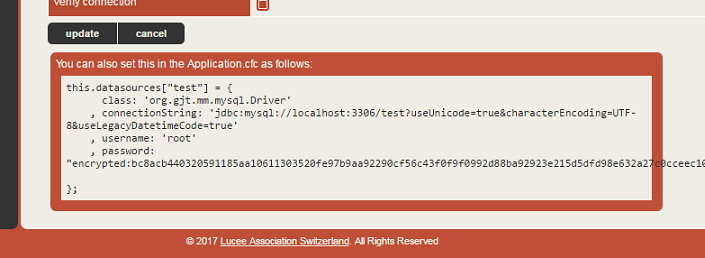
So, the first block simply declares a struct that represents a datasource connection. Then I use that struct as my datasource. You might be thinking, "where the heck did he get that struct??". Glad you asked. Start up a Lucee 4 server, edit a datasource that has the connection properties you want and then at the bottom of the edit page you'll see a code sample you can just copy and paste from. This is the code for an `Application.cfc`, but you can re-use the same struct here.
. Then we simply add the same datasource definition as above to the struct with the name we wish to use to reference this datasource. And finally we `update` the application with the new struct of datasources. Now we can use this datasource name just we would in a "normal" web application.
The internal CLI of CommandBox still runs on Luce 4.5 so make sure you copy the data source definitions from a Lucee 4.5 server, and not a 5.0 server. Also, you'll note I used encrypted passwords above. You can also just put the plain text password in. Just omit the `encrypted:` text like so:
Info Note that if you start a path with a single leading slash in Windows, it will be an absolute path using the drive letter of the current working directory.
For a relative path, do not begin with a slash.
File system paths will be canonicalized automatically which means the following is also valid:
If you are on Windows, CommandBox supports UNC server shares bu accessing the name of the server or the IP address. Note, you can use forward or backslashes in Windows, but a UNC path MUST start with two backslashes.
Backslashes need to be escaped from the command line and in JSON, so most usage of UNC server paths will require you to type four slashes like \\\\ which will properly escape to \\
You cannot directly list the contents of a server like \\webdev01 as that is not a true directory. You always need to access a specific share like \\webdev01/webroot.
By default, CommandBox will access UNC paths using the same permissions of the user that the box process was started with. There's no way to specify a user, so if you need to use a custom user, you'll need to run native NET USE command from the CLI first to change how it is authenticating. Unfortunately, this is a limitation of how Java accesses UNC paths so CommandBox has little control over it.
Positional parameters omit the name= part and only use the value. They must be supplied in the order shown in the Command API docs or help command. We try to place the most common parameters at the beginning so you can use named parameters easily. Here is the equivalent of the named command above:
Of course, only the required parameters must be specified. I'm only including all of them here for the completeness of the example.
If you do not provide a parameter that is required for the command execution, the shell will stop and ask you for each of the missing parameters before the command will execute.
Info It is not necessary to escape special characters in parameter values that are collected in this manner since the shell doesn't need to parse them. The exact value you enter is used.
Any parameter that is a boolean type can be specified as a flag in the format --name. Flags can be mixed with named or positional parameters and can appear anywhere in the list. Putting the flag in the parameter list sets that parameter to true. This can be very handy if you want to use positional parameters on a command with a large amount of optional parameters, but you don't want to specify all the in-between ones.
You can also negate a flag by putting an exclamation point or the word "no" before the name in the format --no{paramName}. This sets the parameter to false which can be handy to turn off features that default to true.
run myApp.exe
run /path/to/myApp!myApp.exe
!/path/to/myApp
!dir
!netstat -pan
!npm ll
!ipconfig
!ping google.com -c 4
!java -jar myLib.jar!git init
touch index.cfm
!git add .
!git commit -m "Initial Commit"!pwd | #ListLast /echo 'git status | find "`package show name`"' | run#now#hash mypass
#reverse abc#listGetAt www.foo.com 2 . | #ucase | #reverse#arrayAvg [1,2,3]
package list --JSON | #structFind dependencies | #structKeyArray!java -version | #listToArray #chr 10 | #arrayFirst | sed 's/java version "(.*)"/\1/'#directoryList path=D:\\ listInfo=nameds = {
class: 'org.gjt.mm.mysql.Driver',
connectionString: 'jdbc:mysql://localhost:3306/bradwood?useUnicode=true&characterEncoding=UTF-8&useLegacyDatetimeCode=true',
username: 'root',
password: 'encrypted:bc8acb440320591185aa10611303520fe97b9aa92290cf56c43f0f9f0992d88ba92923e215d5dfd98e632a27c0cceec1091d152cbcf5c31d'
};
var qry = queryExecute( sql='select * from cb_role', options={ datasource : ds } );
for( var row in qry ) {
echo( row.role & chr( 10 ) );
}appSettings = getApplicationSettings();
dsources = appSettings.datasources ?: {};
dsources[ 'myNewDS' ] = {
class: 'org.gjt.mm.mysql.Driver',
connectionString: 'jdbc:mysql://localhost:3306/bradwood?useUnicode=true&characterEncoding=UTF-8&useLegacyDatetimeCode=true',
username: 'root',
password: 'encrypted:bc8acb440320591185aa10611303520fe97b9aa92290cf56c43f0f9f0992d88ba92923e215d5dfd98e632a27c0cceec1091d152cbcf5c31d'
};
application action='update' datasources=dsources;
var qry = queryExecute( sql='select * from cb_author', options={ datasource : 'myNewDS' } );
for( var row in qry ) {
echo( row.firstName & chr( 10 ) );
}username: 'root',
password: 'clear text password'mkdir C:/sites/test
mkdir /sites/test
mkdir \\server/share/testmkdir /opt/var/sites/testmkdir testmkdir ../../sites/test\\server/share/sites/test
\\10.10.1.205/webroot/logscd \\\\server/share/sites/test
mkdir \\\\10.10.1.205/webroot/logscoldbox create app name=myApp skeleton=AdvancedScript directory=myDir init=truecoldbox create app myApp AdvancedScript myDir trueCommandBox> mkdir
Enter directory (The directory to create) : myDir
Created C:\myDir
CommandBox>coldbox create app myApp --init --installColdBoxcoldbox create app myApp --noInitThe names and numbers of each color are unique and important if you want to do any Task Runners, custom commands that make use of these colors. Modules like Bullet Train also allow you to customize their colors. You can specify a color by its name like LightGoldenrod5 or its number (221).
In a Task Runner or custom command, the print helper would look like this:
Here's an example of customizing your Bullet Train module to use fancy colors. (Color 21 is Blue1)
system-colorsprint.lightGoldenrod5Line( 'This is pretty' );
print.color221( 'This is the same color as above' );config set modules.commandbox-bullet-train.packageBG=lightGoldenrod5
config set modules.commandbox-bullet-train.packageText=color21CommandBox follows the standard system of exit codes. In Bash or DOS, every process has an exit code that is available to the shell after execution is complete. The are as follows:
0 - Success
Any other number - Failure
This slightly counter intuitive to CFML developers since we are used to positive numbers as being truthy and zero as being falsy, but it is the industry standard for shells.
Every command that executes has an exit code. Usually the exit code is 0 if the command ran as expected. If an error of any kind was encountered, then the exit code will be a non-zero number. Often times 1. You can easily see this if you install the module as it shows you the exit code of the last command to run. Commands such as testbox run will return a failing exit code if the tests being run didn't all pass.
You can access the last exit code from CommandBox in a called exitCode.
The CommandBox shell also keeps track of exit code of the last command. When the shell exits, it will report that last exit code to the OS. When running a one-off command from your native shell, the exit code of that command will be passed straight through to your native shell. This means that running something like
from a Travis-CI build will automatically fail the build if the tests don't pass.
You can manually return an exit code from the shell passing the desired number to the exit command and the native OS will receive that code from the box binary.
Similar to bash, CommandBox allows you to chain multiple commands together on the same line and make them conditional on whether the previous command was successful or not.
You can use && to run the second command only if the previous one succeeded.
You can use || to run the second command only if the previous one failed.
You can use a single semi colon (;) to separate commands and each command will run regardless of the success or failure of the previous command.
With the above building blocks, we can get clever to create simple conditionals to only run commands if a condition is met. Or these can simply be used to cause recipes to stop execution or to fail builds based on a condition. The following commands output nothing, but they return an appropriate exit code based on their inputs.
Returns a passing (0) or failing (1) exit code whether the path exists. In this example, we only run the package show command if the box.json file exists.
You can specify if the path needs to be a file or a folder.
Returns a passing (0) or failing (1) exit code whether truthy parameter passed. Truthy values are "yes", "true" and positive integers. All other values are considered falsy
Returns a passing (0) or failing (1) exit code whether both parameters match. Comparison is case insensitive.
CommandBox uses its own command parser that should be similar to what you're used to in other shells. Commands are not case-sensitive and don't contain any special characters except an occasional dash (-). Each command and its parameters will be entered on a single line. Press enter when you are done typing to execute that command. If you ever need to include a line break in a parameter value, quote the value and use the \n escape sequence.
For a full list of all the commands that ship with CommandBox as well as all their parameters and samples, please visit our Command API docs which are auto-generated each build.
To help organize our commands, we introduced the concept of namespaces. this means that commands can contain spaces and be comprised of more than one word. This is to keep things readable. Several commands that are all related will start with the same word, or namespace. An example of this is the namespace. It contains several commands inside of it including , , and . Calling each of them would look like this:
Hint the text
artifactsitself is not a command and you will receive an error if you hit enter after just typing that text. Context-specific help is available for all namespaces by typinghelpafter the namespace.
Namespaces can be more than one level. Another example would be which contains commands such as , , and .
Commands can be aliased so you can call them more than one way, ever wanted to run an ls command in Windows or a dir command in Unix? . Check the or the CLI help command to see if a command has aliases. For instance, the command is aliases as q for quick typing. Another example would be the command that is aliased to just init.
CommandBox's true power comes from it's command-based architecture, but we also support just running plain-jane .cfm files as well.
Take the following file for example:
test.cfm
<cfoutput>#now()#</cfoutput>We can execute this file directly from our native OS prompt by simply passing the filename straight into the box binary.
C:\> box test.cfm
{ts '2015-02-19 20:14:13'}
Or, I can run it from within the CommandBox interactive shell using the execute command:
Now, you people on Unix-based operating systems like Mac and Linux get a special treat. You can actually create natively executable shell scripts that contain CFML! Check out this file that has the special hash bang at top:
test
All we need to do is make it executable
And then just run it like any other shell script!
The underlying engine used to execute your files will be the version of Lucee Server that the CLI is currently running on. Note, this can change between releases, and you can see the current version by running the info command. If you want to try to use the <cfadmin> tag to do things like create datasources, the default password for the Lucee server context is commandbox.
Hopefully this gives you a lot of ideas of how to start using CFML on your next automation task. And if you want even more control like print objects, object oriented code, and fancy parameters, look into making custom .
Do you ever get tired of typing some built in commands and you'd like to just alias them as something simpler? You can create arbitrary alises now that reduce the amount of typing you do.
config set command.aliases.cca="coldbox create app"
cca myApp
In the above example, it's the same thing as typing coldbox create app myApp.
Aliases are treated as in-place shell expansions so you can alias anything including default parameters as well as multiple commands chained together.
config set command.aliases.foobar="echo brad | grep brad | sed s/rad/foo/ > foo.txt && cat foo.txt"
foobar
In the above example, typing foobar is the same as running the giant command string that's being set into the alias.
If you create an alias that matches an existing command name, your alias will take precedence since aliases are expanded before commands are resolved.
Here we can change the name of a common command like echo that we really wish had been named print.
Let's take it a step further and alias the alias!
Running cout brad is the same as running print brad which is the same as running echo brad. Try not to get dizzy when doing this, please.
When you run box without any parameters, you get the CommandBox interactive shell. We use a library called JLine for this interaction and it has a number of bash-like behaviors to make you more productive. CommandBox also bundles several bash-like commands to give you a consistent shell regardless of whether you're on Windows or Linux.
Pressing Ctrl-C will send an interrupt signal to the terminal which will end any currently executing command and exit you back to the shell's prompt. Pressing Ctrl-C if you're already at the prompt won't do anything at all.
Pressing Ctrl-D from a prompt sends an OEF signal and will exit out of the shell entirely, just like if you had run the exit
CommandBox contains a REPL command which is a powerful tool to execute ad-hoc CFML code from the command line. A REPL reads user input, evaluates it, prints the result, and then repeats the process. The CommandBox REPL supports the inline execution of both CF script or tags.
The default mode of the REPL command is to accept script. You can enter most any CF Script into the prompt for execution. If the script is an expression that returns a value, or sets a variable, that value/variable will be output. Variables that you set will be available to you until you exit the REPL command.
Parameter values passed into a CommandBox command don't have to be static. Any part of the parameter which is enclosed in backticks (`) will be evaluated as a CommandBox expression. That means that the enclosed text will be first executed as though it were a separate command and the output will be substituted in its place.
Any valid command can be used as an expression, including calls to native OS binaries, CFML functions, or REPL one-liners. Note that any text that a command immediately flushes to the console during its execution (like a download progress bar) will not be returned by the expression, though it will display on the console.
Take for instance, this simple command that prints out the contents of a file:
It can be used as a dynamic parameter like so:
The CommandBox interactive shell already allows for a command to pipe data into another Command.
Since CommandBox commands don't have a "standard input", the output of the previous command is passed into the second command as its first parameter. In this instance, the grep command's first parameter is called input so it receives the value returned by the cat command. The "find me" text becomes the second parameter-- in this case, expression.
Never miss an update again by installing the CommandBox update check module for ForgeBox. It will check for new versions of the core CommandBox CLI as well as any of your installed syste modules once a day when the CLI starts up in interactive mode. Internet connection required.
CommandBox> execute test.cfm
{ts '2015-02-19 20:12:41'}CommandBox allows you to re-run items from your command and/or REPL history by pressing the up arrow to cycle through previous commands. You can type a partial command like cd and then hit up arrow and the history items will be filtered to items starting with that. You can also use what's commonly known as i-search. Press Ctrl-Shift-R to open a search from the console where you can search your entire command history by keyword. Keep pressing Ctrl-Shift-R to cycle through the results. Press Ctrl-Shift-S to cycle backwards through the results.
#!/usr/bin/env box

<cfoutput>#now()#</cfoutput>config set command.aliases.print=echo
print bradconfig set command.aliases.cout=print
cout bradMulti-line statements are also allowed. If you have typed a starting { without an ending }, the REPL will keep accepting lines until it has determined the statement to be finished. The prompt changes to ... until the statement is finished.
If you would like to abort a multi-line statement, simply type exit at the prompt.
You can also enter tags at the REPL. Switch to this mode by setting the script flag to false.
Any output from the tags will be returned to the console.
Multi-line statements are not currently supported in the tag REPL.
The script and tag REPL have their only history. Use the up and down arrows to access previous things you typed. Your REPL history can be viewed and managed by the history command (once you exit the REPL).
Tab completion is currently not supported in either of the REPLs.
CFSCRIPT-REPL: 5+5
=> 10
In the example above, the contents of the defaultServer.txt file will be passed in as the value of the "name" parameter to the "server start" command. If the contents of the file was the text myServer, the equivalent final command would be:
There can be more than one expression in a single parameter value. Expressions can also be combined with static text and they will all be evaluated in the order they appear:
That would output something similar to:
If you need to use an actual backtick in a parameter value, escape it with a backslash.
Which outputs
This unlocks a new world of scripting potential when combined with other abilities like native OS binary execution and CFML functions from the CLI. Here's some examples to get your gears turning:
Set a package property in box.json equal to the current date passed through a CFML date mask
Set properties based on manipulations of previous values:
Perform CFML opertaions on local files:
Execute environment-aware install scripts based on local files. (isProduction.txt would contain the text true or false in this ex.)
cat defaultServer.txtThere is nothing special about a parameter that can received piped input. In fact, any command can receive piped input for its first parameter. The following commands all accomplish the same thing.
This allows you to get creative by combining commands together like so:
This takes a package name and replaces some text on output. One benefit is that Windows users don't have a native sed command in their OS, but those commands inside a CommandBox Recipe will execute consistently on any machine.
What if you aren't using the interactive shell and you want to pipe into CommandBox from your OS's native shell? This is also supported, and as long as there is a command specified, the piped input will become the first parameter as before.
If you pipe text directly into the box executable with no command specified in the parameters, each line of your piped text will be read from the standard input as a command.
cat myfile.txt | grep "find me"coldbox create app "My App"echo "My App" | coldbox create app> !git status
fatal: not a git repository (or any of the parent directories): .git
Command returned failing exit code [128]
> echo ${exitCode}
128$> box testbox runexit 123mkdir foo && cd foomkdir foo || echo "I couldn't create the directory"mkdir foo; echo "I always run"pathExists box.json && package showpathExists --file server.json && server show
pathExists --directory foo || mkdir fooassertTrue `package show private` && run-script foo
assertTrue ${ENABLE_DOOM} && run-doom
assertTrue `#fileExists foo.txt` && echo "it's there!"assertEqual `package show name` "My Package" || package set name="My Package"
assertEqual ${ENVIRONMENT} production && install --productionartifacts list
artifacts clean
artifacts removeartifacts helpcoldbox create handlerchmod +x test$> ./test
{ts '2015-02-19 20:31:32'}CFSCRIPT-REPL: breakfast = ['bacon','eggs']
=> [
"bacon",
"eggs"
]
CFSCRIPT-REPL: breakfast.len()
=> 2
CFSCRIPT-REPL: breakfast.append( 'orange juice' )
=> [
"bacon",
"eggs",
"orange juice"
]CFSCRIPT-REPL: for( item in breakfast ) {
...echo( item & chr(10) )
...}
=> bacon
eggs
orange juiceREPL --!scriptCFML-REPL: plain text
=> plain text
CFML-REPL: <cfset name = "Brad Wood">
=>
CFML-REPL: <cfoutput>#reverse( name )#</cfoutput>
=> dooW darB
CFML-REPL: <cfif 1 eq 2>yes<cfelse>no</cfif>
=> nohistory type=scriptrepl
history type=tagrepl --clearserver start name=`cat defaultServer.txt`server start name=myServerecho "Your CommandBox version is `ver` and this app is called '`package show name`'!!"Your CommandBox version is 3.0.0 and this app is called 'Brad's cool app'!echo "Nothing to \`see\` here"Nothing to `see` herepackage set createdDate="'`#now | #dateformat mm/dd/yyyy`'"
Set createdDate = 1/1/2016package set name=brad
Set name = brad
package set name="`package show name` wood"
Set name = brad woodCommandbox> #hash `cat pass.txt`install id=coldbox production=`cat /home/user/isProduction.txt`echo "My App" > appName.txt
cat appName.txt | coldbox create apppackage set name="hello world"
package show name | sed s/hello/goodbye/C:\> echo coldbox | box install
C:\> echo reverse('this is a test') | box replC:\> echo version | box
C:\> box < commands.txtNext, drill down and get help on a specific namespace like server.
And finally, get help on a single command such as server stop. We can see the command is also aliased as just stop as well as all the possible parameters and their types along with a few sample ways to call the command.
For a full list of all the commands that ship with CommandBox as well as all their paramaters and samples, please visit our Command API docs which are auto-generated each build. This is the same information available to you via the help command, but in a searchable format you can browse outside of the CLI.
Sometimes, you need to view the CommandBox log file. Maybe it is to debug a command you are writing or to submit a crash report. The system-log command outputs the path to the CommandBox log file. You can use it creatively by piping its output in to other commands:
If a value is a single word with no special characters, you don't need to escape anything. Certain characters are reserved as special characters though for parameters since they demarcate the beginning and end of the actual parameter and you'll need to escape them properly. These rules apply the same to named and positional parameters.
If a parameter has any white space in it, you'll need to wrap the value in single or double quotes. It doesn't matter which kind you use and it can vary from one parameter to another as long as they match properly.
Quotes are actually allowed unescaped in a value like so:
However, if the parameter contains whitespace and is surrounded by quotes, you'll need to escape them with a backslash.
Hint Only like quotes need to be escaped. Single quotes can exist inside of double and vice versa without issue. These examples below are perfectly valid.
Backticks are used in parameter values to demarcate an expression to be parsed. Escape them with a backslash. All backticks need escaped regardless of whether they are encased on single or double quotes.
If you have an equals sign in your value, you'll need to escape it with a backslash unless you've quoted the entire string.
Line breaks can't be escaped directly as of Commandbox 4.0. Instead, most terminals let you enter a carriage return by pressing Ctrl-V and pressing enter. To enter a line feed, press Ctrl-V followed by Ctrl-J.
On ConEMU, which performs a paste operation with Ctrl-V, use Ctrl-Shift-V instead.
A tab character can't be escaped directly as of CommandBox 4.0. Instead, most terminals let you enter a tab char by pressing Ctrl-V followed by tab. In ConEMU which allows pasting via Ctrl-V, you can use Ctrl-Shift-V and then press tab.
Since the backslash is used as our escape character you'll need to escape any legitimate backslash that happens to precede a single quote, double quote, equals sign, or letter n.
This will print foo\=bar
The foreach command will execute another command against every item in an incoming list. The list can be passed directly or piped into this command. The default delimiter is a new line so this works great piping the output of file listings directly in, which have a file name per line.
This powerful construct allows you to perform basic loops from the CLI over arbitrary input. Most of the examples show file listings, but any input can be used that you want to iterate over.
This example will use the echo command to output each filename returned by ls. The echo is called once for every line of output being piped in.
ls --simple | forEachThe default command is "echo" but you can perform an action against the incoming list of items. This example will use "cat" to output the contents of each file in the incoming list.
ls *.json --simple | forEach catYou can customize the delimiter. This example passes a hard-coded input and spits it on commas. So here, the install command is run three times, once for each package. A contrived, but effective example.
If you want a more complex command, you can choose exactly where you wish to use the incoming item by referencing the default system setting expansion of ${item}. Remember to escape the expansion in your command so it's resolution is deferred until the forEach runs it internally. Here we echo each file name followed by the contents of the file.
You may also choose a custom placeholder name for readability.
The forEach can also iterate over JSON representations of objects or arrays. This means you can pipe in JSON from a file, a command such as package show or any REPL operation that returns complex data. The delimiter parameter is ignored for JSON input.
If iterating over an array, each item in the array will be available as ${item}. If iterating over a object, the object keys will be in ${item} and the values will be in ${value}. You can customize the system setting name for value with the valueName parameter to forEach.
CommandBox> system-log | open
CommandBox> system-log | cat
CommandBox> system-log | tailecho 'Hello World'
echo "Good Morning Vietnam"forEach input="coldbox,testbox,cborm" delimiter="," command=install
ls *.json --simple | foreach "echo \${item} && cat \${item}"ll *.json --simple | foreach "echo \${filename} && cat \${filename}" filenameecho O'reillyecho 'O\'reilly Auto Parts'
echo "Luis \"The Dev\" Majano"echo "O'reilly Auto Parts"
echo 'Luis "The Dev" Majano'echo "Nothing to \`see\` here"echo 2+2\=4
echo "2+2=4"echo foo\\\=barpackage show dependencies | foreachpackage show dependencies | foreach command="echo 'You have \${package} version \${version} installed'" itemName=package valueName=versionOne of the most productive features of the shell is tab completion. This means you can type a partial command and hit the tab key on your keyboard to be prompted with suggestions that match what you've typed so far. If there is only one match, it will be finished for you. This can save a lot of typing and will be a familiar concept to those already living in a CLI environment.
When "tab" is pressed, the text you've entered so far is run through the CommandBox command parser to see if it can match a namespace, command, or parameters. If you press tab at an empty prompt, all top level commands and namespaces will display. Since tab completion is run through the standard command parser, that means it works on command aliases as well.
The tab completion options are broken up into groups to visualize the commands, parameters, flags, etc. As you type, the list of available options will auto-filter for you. You can keep hitting tab to toggle through the available options and you can press enter to select the one you want.
If your text matches only command, namespace, or alias, it will be auto-filled in for you. For instance, if you type the following and press tab...
the namespace will be filled in and followed by a space so you are ready to continue typing.
If you then press tab again, you will be presented with a list of second-level namespaces inside of and the same prompt will be output again below it so you can continue typing.
If the parser finds a complete command, it will move on to parameter completion which is slightly more complicated since at first, there is no way to tell if you are going to named parameters, positional parameters, and/or flag. Based on what parameters you've typed so far, if any, CommandBox will do it's best to give you only relevant options. If it is unsure, it will provide you with every possibility it can think of. Don't be afraid to try pressing tab while typing parameters, you may be surprised how often we can guess where you're going!
Here is CommandBox giving every option possible for the command. Note, force and recurse are booleans, so they can be specified as flags.
If you have started typing named parameters, CommandBox will only suggest unused named parameters and flags.
If you are using named parameters, and you have typed the name of a parameter followed by an equals sign and no space, CommandBox will attempt to prompt valid values. This includes but is not limited to booleans and file system paths.
Here, true and false are offered as possible values for the force parameter.
Here, all files and folders in the current working directory are offered as possibilities for the path parameter of the command.
Tab completion for positional parameters works the same as the "value" portion of named parameters. Parameter names will also show up when you hit tab even when using positional parameters. This is on purpose to remind you of what options you have, but you obviously won't type them.
Tab completion will always work for flags if your command has any boolean parameters. Here we type -- in the delete command and we are prompted with --force and --recurse.
Commands have the ability to give hints in the form of a static list or a runtime function with dynamic output.
Here the command dynamically provides completion for its type attribute based on the current types returned by the .
When writing code inside the REPL, you can also press tab to get completion on
CFML function names
Member function names like .append()
Variable names you have created as part of your REPL session
CommandBox allows you to access Java System Properties from the CLI and environment variables from your operating system via the ${name_here} mechanism. But CommandBox also gives you the ability to create variables of your own directly in the shell. The scope (life) of these environment variables depends on how and where they are declared.
Every shell instance has its own set of environment variables you can set and read. These live for the duration of the shell and have the same lifespan as Java system properties in the CLI. There is an env namespace of commands for dealing with environment variables.
To set a new variable, you can run this:
You can view the contents of that variable from anywhere in the same shell session like so:
Clear out an environment variable like so:
In addition to the global shell environment, each executing command receives its own set of environment variables that go away when the command finishes executing. Unlike Bash, the parent variables are not copied into each command, but a hierarchy is maintained and when a variable is not found, the parent command is checked and so on until the global shell variables. After that, the Java system properties and then OS's actual environment is checked.
Here is a contrived example of an echo command that run a sub command as part of a command expression (backtick expansion). The sub command sets an environment variable and then outputs it.
The first line will output the text "Cheese" but the second line will output the default value of "myDefaul" since the variable only existed in the inner context of the expression and isn't visible to the outer shell.
Recipes behave like a subshell and any variables set in a recipe will live for the duration of that recipe but will be gone once the recipe exits.
To view the environment variable for the current command context, run:
The output is a JSON serialized struct, which makes it suitable for programmatically accessing.
There is a command to help you debug what variables are set in each command context as well as the global shell. Here we pipe some commands into a recipe for execution. The context for the env debug command has no variables, the recipe command has a variable called inRecipe and the global shell as the 2 variables from the example above.
Now that we're starting to use CommandBox in a lot of cloud scenarios like Docker, we're looking for more and more ways to have dynamic configuration. The most common way to do this is via Java system properties and environment variables. We've wrapped up those two into a new concept called System Settings. Now any time you use ${mySetting} in a command parameter, a box.json property, server.json property, or a Config Setting, that place holder will be replaced with a matching JVM property or env var (in that order) at runtime. This is great for setting things like ports, default directories, or passwords and other secrets as an env variable so it can be different per server and not part of your code.
You can test it out easily by outputting your system path like so:
If a system setting can't be found in a Java property or an environment variable, an empty string will be returned. You can provide a default value like so.
This does assume that your default value will never contain a colon!
System settings are looked up in the following order. If the same variable exists in more than one place, the first one found will be used:
Environment variables for the currently executing command
Environment variables for the parent (calling) command (if applicable)
Global shell environment variables
JVM System Properties in the CLI process
For example, if you run the following it will output the contents of your OS's PATH environment variable.
However, if you set a shell environment variable from inside CommandBox called path and then output it, you will see the contents of your variable since it overrides.
When box.json or server.json files are read, they automatically have all system setting setting placeholders swapped out. For instance, you can specify the port for your server in your server.json like so:
Note, we escaped the system setting by putting a backslash (\) in front of it. That's because we wanted to insert the actual text into the file and not the value of it! The resultant server.json is this. Note the system setting needs to be encased in quotes so it's just a string for the JSON.
Now, if your server has an environment variable called WEB_PORT, it will be used as the port for your server.
If you're writing a custom command or task runner that reads a JSON file of your own making, you can do easy system setting replacements on the file.
The expandDeepSystemSettings() method will recursively crawl the struct and find any strings with system setting placeholders inside them. Be careful not to write back out the same struct after you've done replacements on it. Otherwise, you'll overwrite the placeholders with the current values!
You can also manually replace system setting placeholders in a single string like so:
The SystemSettings service also gives you programmatic access to individual system settings in your custom commands and task runners.
This module will customize your CommandBox prompt while in the interactive shell. It has multiple "cars" that are part of the train and each car can contribute some output to the prompt that is working directory-aware.
THIS MODULE REQUIRES COMMANDBOX 4.0.0!
This project is based on the Zsh Bullet Train theme which is based on the Powerline shell prompt. The goal is to add in additional information to your prompt that is specific to the current working directory, or the last command you ran.
Install the module like so:
This module uses some special Unicode characters to draw the prompt that may not be in your default terminal. You can turn off all Uniode chars and live with an uglier shell like so:
Or try a font like Consolas, DejaVu Sans Mono, or Fira Code. The best way to get all the characters to work is to install a "Powerline patched" font and set your terminal to use it. This may differ based on your operating system.
Here is a guide for setting a new font up to be used with the Windows cmd terminal:
For Windows users, we also recommend using ConEMU as your terminal.
You don't need to do anything special. Just continue to use the CommandBox interactive shell like you always do. You'll notice that the prompt is spanned across two lines and contains additional information. Cars that do not apply to the current directory will simply not be displayed. Familiarize yourself with what each bullet train "car" represents and soon you'll be using the data in the prompt without even thinking about it!
You can customize the cars that show, change the colors of existing cars and even create your own custom additions to Bullet Train. Read all about it in the readme of the Module homepage on ForgeBox.
Environment Variables from your actual operating system
CommandBox> coldCommandBox> coldboxCommandBox> coldbox
Commands
help
reinit (This command will reinitialize a running ColdBox application if a server was started with CommandBox)
Namespaces
createCommandBox> delete
Flags
--force (Force deletion without asking) --recurse (Delete sub directories)
Parameters
path= (file or directory to delete.) recurse= (Delete sub directories)
force= (Force deletion without asking)CommandBox> delete path=myDir force=true
Flags
--recurse (Delete sub directories)
Parameters
recurse= (Delete sub directories)CommandBox> delete path=myDir force=
Values
force=true force=falseCommandBox> delete path=
Directories
path=tests/ path=models/ path=coldbox/ path=modules/
Files
path=box.json path=index.cfm path=server.jsonCommandBox> delete myDir --
Flags
--force (Force deletion without asking) --recurse (Delete sub directories)CommandBox> forgebox show type=
Values
type=di type=caching type=projects
type=cms type=logging type=cf-engines
type=mvc type=modules type=interceptors
type=demos type=plugins type=wirebox-aspectsenv set foo=bar
# or just
set foo=barenv show foo
# or provide a default value
env show foo myDefault
# Or via System Setting expansions
echo ${foo:myDefault}env clear fooecho `set myVar=cheese && echo \${myVar}`
env show myVar myDefault> env set color=red
> env set number=2
> env show
{
"number":"2",
"color":"red"
}> env show | foreach "echo 'The var \${item} is set to \${value}'"
The var number is set to 2
The var color is set to red> echo "set inrecipe=true; env debug" | recipe
[
{
"environment":{},
"context":"env debug"
},
{
"environment":{
"inRecipe":"true"
},
"context":"recipe"
},
{
"environment":{
"number":"2",
"color":"red"
},
"context":"Global Shell"
}
]echo ${PATH}server start port=${SERVER_PORT:8080}echo ${path}set path=donuts
echo ${path} server set web.http.port=\${WEB_PORT:8080}{
"http":{
"port":"${WEB_PORT:8080}"
}
}
}component {
property name='systemSettings' inject='SystemSettings';
function run() {
var mySettings = deserializeJSON( fileRead( 'mySpecialConfigFile.json' ) );
systemSettings.expandDeepSystemSettings( mySettings );
}
}var myValue = 'User home is in ${user.home}';
myValue = systemSettings.expandSystemSettings( myValue );var mySetting = systemSetting.getSystemSetting( 'settingName' );
or
var mySetting = systemSetting.getSystemSetting( 'settingName', 'defaultValue' );install commandbox-bullet-trainconfig set modules.commandbox-bullet-train.unicode=falseIf you want to automate several commands from your native shell, it will be faster to use our recipe command that allows you to run several CommandBox commands at once. This will allow you to only load the CommandBox engine once for all those commands, but still be dumped back at your native prompt when done. Recipes can also just be useful for a series of commands you run on a regular basis.
Read more about the recipe command in our Command API docs.
Think of a recipe as a simple batch file for Windows or a shell script for Unix. It's just a text file where you place one command on each line and they are executed in order. Enter the commands exactly as you would from the interactive shell.
Technically a recipe can have any file extension, but the default recommendation is .boxr which stands for "box recipe". Lines that start with a pound and whitespace characters (e.g. "# My Comments") will be ignored as comments. The pound character followed immediately by word-like characters is the mechanism for invoking .
buildSite.boxr
Execute your recipe with the recipe command, giving it the path to the recipe file.
If any commands in the recipe stop and ask for input, the recipe will pause until you supply that input. All commands that have confirmations, etc should have a --force flag for this purpose so you can run them headlessly without requiring your input. See the rm command above for an example.
You can also bind the recipe with arguments that will be replaced inside of your recipe at run time. Pass any arguments as additional parameters to the recipe command and they will be passed along to the commands in your recipe.
If you use named arguments to the recipe command, they will be accessible via environment variables inside the recipe as ${arg1Name}, ${arg2Name}, etc.
Consider the following recipe:
notifyWinner.boxr
You would call it like so:
Output:
Note, all parameters to the recipe command needed to be named, including the recipeFile.
Now let's look at the same recipe set up to receive positional parameters.
You would call it like so:
Output:
If an argument is not passed, you can use the default value mechanism:
You can use echo on and echo off in recipes to control whether the commands output to the console as they are executed. This can be useful for debugging or confirming the success of commands with no output. Echo is on by default.
Note, echo off doesn't suppress the output of the commands, just the printing of the command and its arguments prior to execution. This does not use the actual echo command and is a feature that only applies during the execution of recipes.
Output:
You can use the exit command in a recipe and instead of leaving the entire shell, the recipe will simply stop execution right there. If an exit code is passed, it will because the exit code of the recipe command as well as the entire shell.
Any command that errors or returns a non-0 exit code will end the recipe immediately and the recipe command will inherit that exit code. This line in a recipe will stop the recipe if there is not a foobar property in your box.json, but not before outputting a message.
In addition to passing a file path to the recipe command for execution, you can also pipe the contents of a file directly into the command. if the input does not match a file path, it is assumed to be executable commands.
This can also give you some interesting ability to do dynamic evaluation of command strings.
# Start with an empty folder
rm mySite --recurse --force
mkdir mySite
cd mySite

# Initialize this folder as a package
init name=mySite version=1.0.0 slug=mySlug

# Scaffold out a site and a handler
coldbox create app mySite
coldbox create handler myHandler index

# Add some required package
install coldbox
install cbmessagebox,cbstorages,cbvalidation

# Set the default port
package set defaultPort=8081

# Start up the embedded server
startrecipe buildSite.boxrecho "Hello there, ${name}, You've won a ${prize}!"recipe recipeFile=notifyWinner.boxr name=Luis prize="NEW CAR"Hello there, Luis, You've won a NEW CAR!echo "Hello there, ${1}\n You've won a ${2}!"recipe notifyWinner.boxr Luis "NEW CAR"Hello there, Luis, You've won a NEW CAR!echo "Hello there, ${name:human}, You've won a ${prize:something cool}!"# Now you see me
echo on
version
# Now you don't
echo off
versionversion
CommandBox 1.2.3.00000
echo off
CommandBox 1.2.3.00000exit 1package show foobar || echo "Missing property!" && exit 999echo myCommands.txt | recipeset cmd=version
echo ${cmd} | recipe


\)